Reports User Manual
Table
of Content
1. Accessing the Reports Module
The Report module in the Illusions system
provides you with the facility for maintaining reports of the different
functionalities.
1.
Accessing the Reports Module
The Reports module can be accessed from
the home page as shown in the display below.

On the home page of the Reports Module
page, all the different Reports that will be required depending on your use age
are listed below. Each of these options will be described in-detail in this
document.
- Hotel Tariff
- Client Tariff
- Allocation
Utilisation Report
- Hotel Blackout
Dates
- Creditors
- Debtors
- Statement of
Accounts
- All-in-one
2. Hotel Tariff
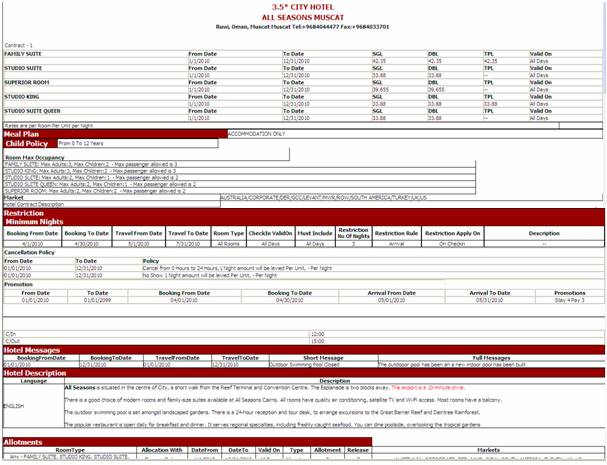
A hotel tariff will display room rates
along with other rate information which may be relevant to guests. All the
information of the Hotel that is loaded against this hotel will be listed in
this report. There are various options to choose to get the output of the Hotel
Tariff.
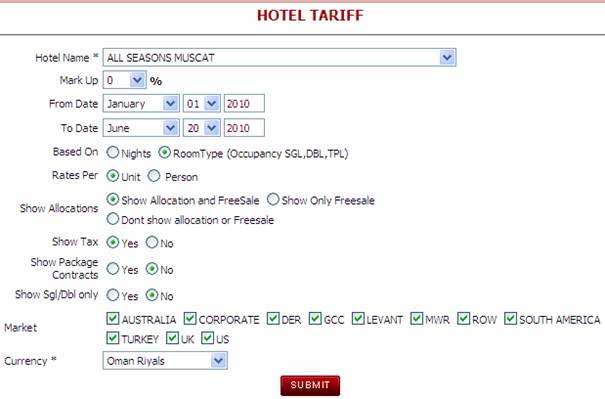
- Hotel Name à Use the drop down to select the Hotel Name.
- Markup à You can choose the markup using the drop; this
comes from the Tariff Wizard.
- From / To Date à The date from and until this Tariff is valid.
- Based on à The two options are either based on Nights or
based on room type.
- Rates Per à Select the radio button of either Unit or
Person.
- Show Allocations à You can choose the option for the different
allocation that is given.
- Show Tax à If you need to show the tax select yes or No.
- Show Sgl/Dbl Only à The system will only show the Single or Double
and not display the Triple room etc.
- Market à Select the Market that you want to show the
tariff of.
- Currency à Select the currency that you want the tariff
to be displayed in.
Result of the Hotel Tariff Report
3. Client Tariff
In Illusions a tariff is attached to
each client. Tariff could be different depending on the clients. Client Tariff
report will give a detailed view of
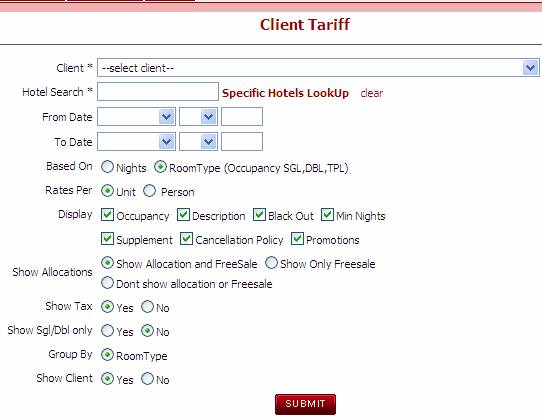
- Client
à Use the drop down to select the client, the
clients that are loaded from the Client Wizard.
- Hotel
Search à Click on Specific Hotel Lookup and all the
hotels that are loaded will be displayed. Select the hotel and Submit.
- From
/ To à The from / to date as required
- Based
on à The two options are either based on Nights or
based on room type.
- Rates per à Select the radio button of either Unit or
Person.
- Display
à By default all the options will be selected.
Un-tick the field that is not required and click on Submit.
- Show
Allocations à By default show Allocation and Free sale will
be selected. Un-tick the one that is not required to show for this client.
- Show
Tax à By default Yes is selected, select Yes or No
as required.
- Group
by à Room type is automatically selected.
- Show
Client à If the Show client is selected to Yes, then
the client name will appear, if No is selected the name of the client will
not appear.
Result of Client Tariff Output

4. Allocation
Utilisation
Allocation Utilisation Report allows the user to search by
the following:
Allocation Report Features
·
From / To Date (mandatory field)
·
Search By Hotel (mandatory field)
·
Search By Market (non mandatory)
·
Search By Direct Allocation (non mandatory)
·
Search By Allocation Type (non mandatory)
The Allocation Utilisation Report is displayed by Hotel and
Market and will show a breakdown of the Allocation per Hotel Room Type in the
following rows:
·
Total Allocation
·
Sub Allocated
·
Company Pool
·
Sub Allocated Closed
·
Company Pool Closed
·
Sub Allocated Release Date
·
Company Pool Release Date
·
Sub Allocated Sold
·
Company Pool Sold
·
Sub Allocated Available
·
Company Pool Available
·
Total Available
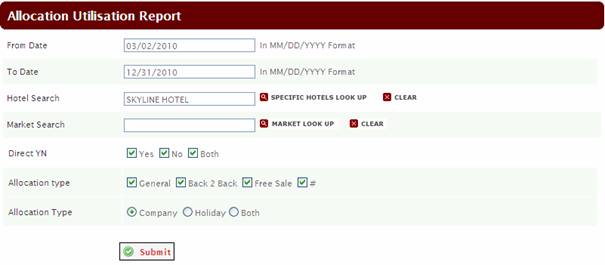
Allocation Search Criteria Screen
The search criteria entered is for the Skyline Hotel from 3rd
February – 31 August 2010 for all markets.
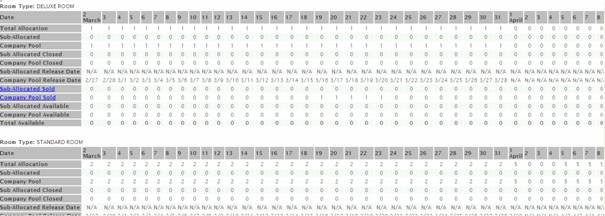
The search results show the breakdown of allocation and sub
allocation for the Skyline hotel for 02Feb – 31 December 2010 for all markets.
Multiple Room Types / Large date range searches
For Hotels that have multiple room types, the Allocation
Report will show a separate summary per room type along with a sub total after
each room type and a final total at the bottom of the screen.
For Larger date range searches, the results will appear
across the right of the screen so please use the scroll bars to scroll through
the monthly data.
Tip: The report will be more manageable to view if the
report is run for shorter periods (i.e. per month or 3 month period).
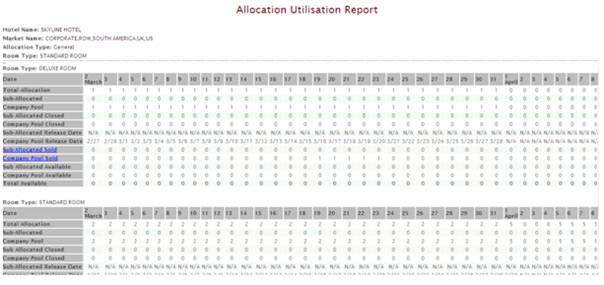
Example: Allocation Utilisation Report for the Skyline Hotel for the month of
March. There are 2 Room Types shown. The panel at the bottom shows a total
summary for all Room Types shown.
Export to
Excel
If you wish to export the Allocation Utilisation Report to
Excel, please use the Export to Microsoft Excel option that is available via
your Internet Explorer Browser. (Right Mouse Click and select the Export to
Microsoft Excel Link).
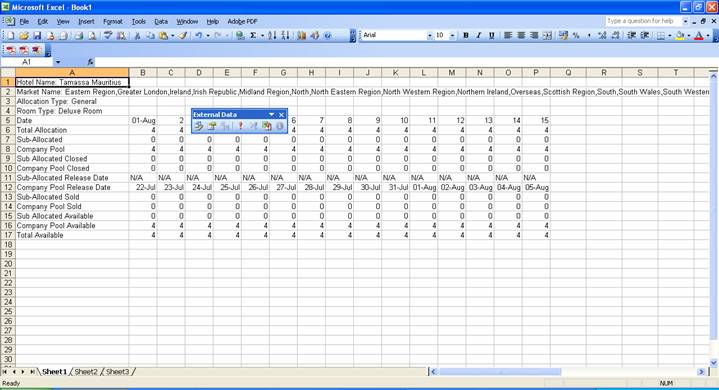
This will display your allocation report in excel format to
sort as required.
Export to
Excel example
5. Hotel Blackout Dates
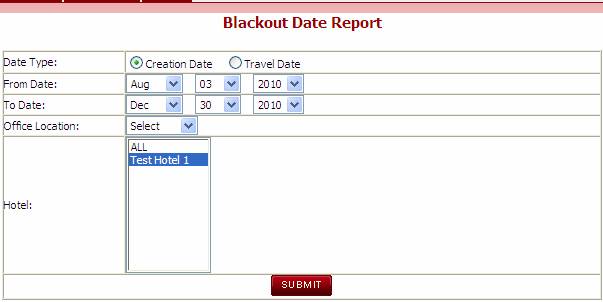
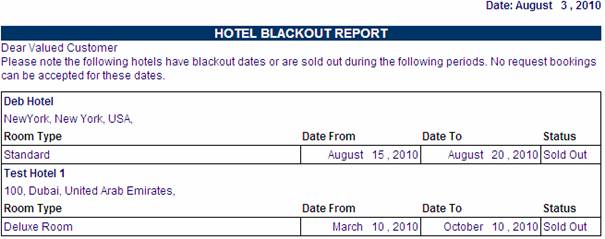
When there is a Blackout Date defined
for a hotel in the Hotel Contract level, the same can be seen in Hotel Black
out Report. System will display the Status as Sold Out as these are period
under the Blackout Dates.
- Date
Type à Select the radio button of Creation Date or
Travel Date
- From
/ To Date à Select the date range using the Drop down.
- Office
Location à If there are more than one location of the
company, select using the drop down to look for the location.
- Hotel
à All the hotels will be displayed here. Select
the hotel that you want to see the Blackout date or click All, system will
display the blackout dates of all the hotel that has black out date
Result of the list of hotel having
Blackout Dates
6. Creditors
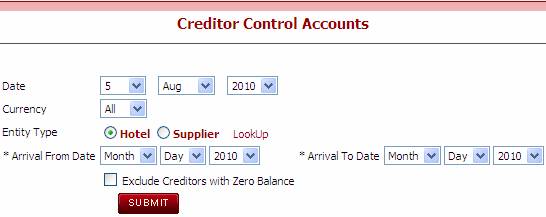
Amount that is due to the Creditors can
be tracked using the Creditors Report.
Enter the date field and select the currency. Specific Hotel or Supplier
can be selected using the Lookup and click on Submit.

7.
Debtors
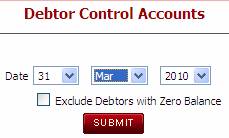
Amount that is due from the clients can
be tracked using the Debtors Report. Enter the date in the field to show the
exact amount that is due.

8. Statement of Accounts
The Statement
of Accounts will show the Amount Due and Amount Received of a booking. There
are different options in the search criteria as displayed below.
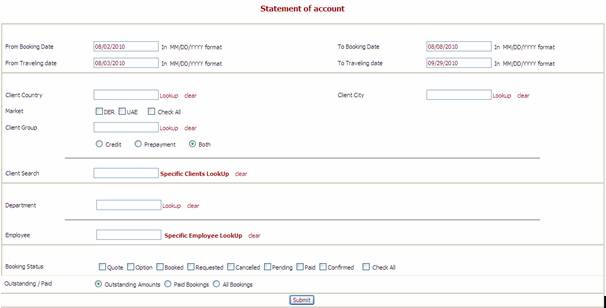
Date à The
different options given are Booking and Traveling date. Using the calendar fill in the date band.
Client à Clients
can be searched based on the Country, City, Market, Group and Specific clients.
Department à Using the
Lookup search can be done for the department that made the booking.
Employee à The names of
the employee that was loaded in the Masters will be displayed here.
Booking Status à The
different options that are displayed can be selected for statement of accounts.
Outstanding / Paid à The search
for statement of accounts can also be done based on the Outstanding amount or
amount paid.
9. All-in-One
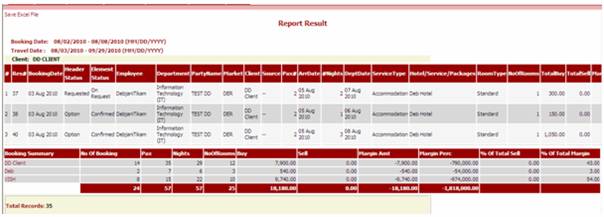
The Report
Search is a part of Reports which gives a detailed report of a booking. It
gives the user the Total Buy and Sell rate with Margin Amount and Percentage.
With one look the Tour operator can see how much marginal profit is made
against each booking.
Click on
Reports Search system will display the various option where the user can enter
data as per his requirement.
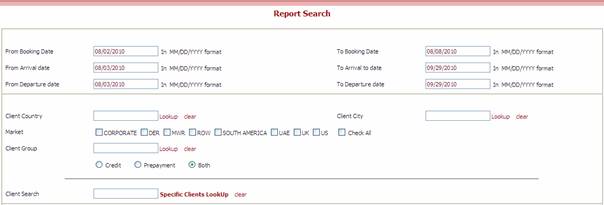


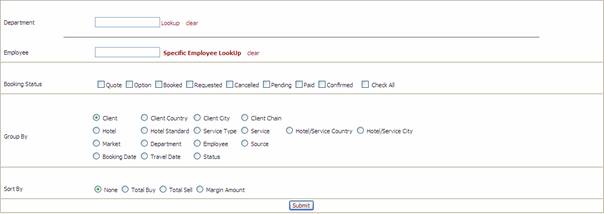
Search Option
for All in One Report. The result for
all the different search will depend on the search criteria.
Date à The
different date options given are Booking, Arrival and Departure.
Client à A client
can be searched using the Country, City or Group option or specific client
lookup.
Click on the
Lookup and select the client for the report.
Hotel à A hotel
can be searched using the Country, City, Standard, Property type or by specific
hotel lookup.
Service à Service
can be searched using the service type, Country, Supplier, City or Specific
Service.
Department à The
department that was entered in the Setup will appear here. The user can select
the department and search for the report.
Employee à The
employee names also appear from the setup in the masters. A search can be done
using the Employee name.
Booking Status à The
various status of a booking can be used for the search criteria in the All in
one Report.
Group by à The group
by has more options as displayed.
Sort by à The All in
one report can also be searched based on the Total Buy, Sell or Margin Amount.
Below is the
display of the result for search by Client. This report can also be saved as Excel.